
Cloudflare Turnstile is a free security service from Cloudflare. It replaces Google reCAPTCHA to block automated attacks from spam bots. On a WordPress website, you put Turnstile in three places:
- The admin area, including the sign-up and forgot password pages.
- Comments, the easiest place to attack, which hurts your reputation, SEO and website speed.
- Form plugins like Contact Form 7, to filter spam sign-up emails, save money and protect the reputation of your domain’s email.
Every website gets spam bots, new or old. Bots post comments on their own, try to log in on their own and attack every page that has a form.
Comments get spammed most
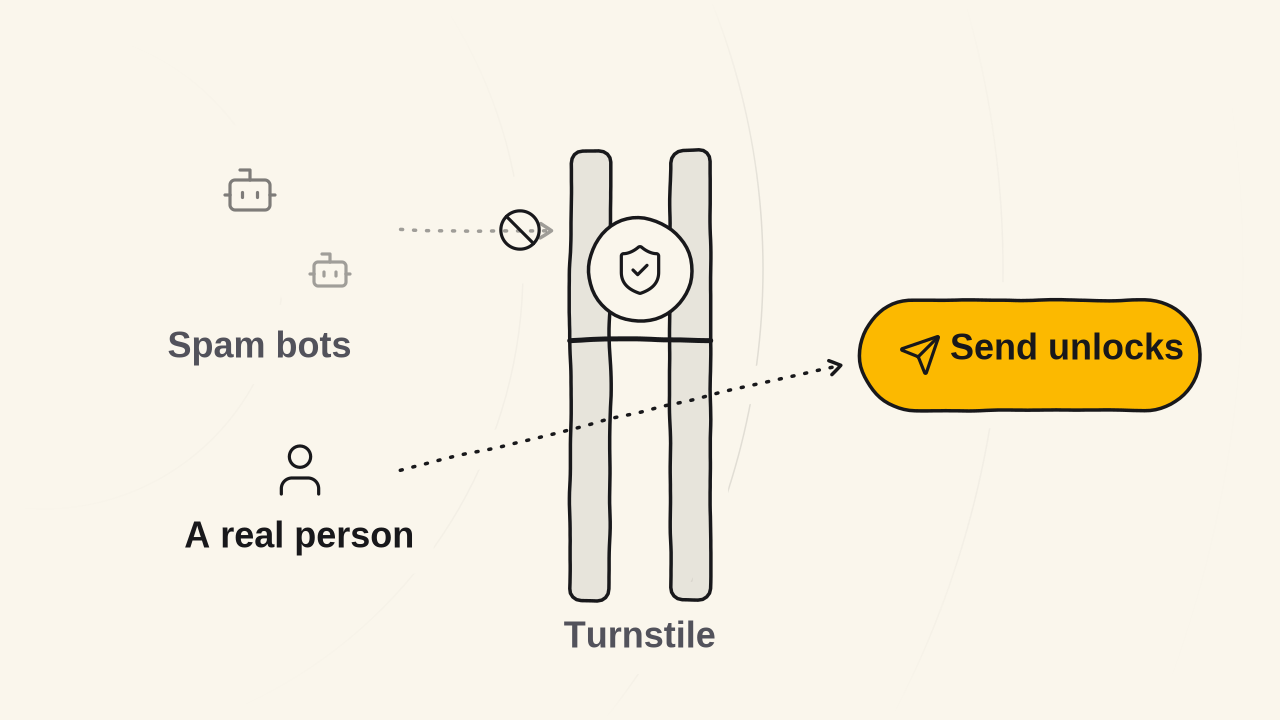
Comments get the worst of the spam. If you do not block bots, the comment section fills with junk even on a new site. If you leave it for a long time, your site’s data grows too big.
Spam bots usually leave ad links to other sites to get backlinks. Junk comments like that pull your site’s SEO down. Bots also try to hack your site through login forms, especially the admin login page.
Turnstile only opens the login button or the submit comment button after it confirms the user is a real person.
What to prepare
- A free Cloudflare account, because Turnstile is a part of Cloudflare.
- Your website’s domain, to set as the widget’s hostname.
- A form plugin if you also want to protect forms, for example Contact Form 7.
Setup steps
Create a Turnstile widget
The widget is the check box that shows on your form, tied to your domain. Log in to Cloudflare and go to Turnstile > Add widget:
- Name the widget anything you like.
- Add your domain as the hostname. A widget takes at most 10 hostnames, so use each widget for 1 domain only: keep the other slots for its subdomains later.1
- Leave the other settings as they are and save.
Save the site key and secret key
These two keys connect your website to the widget you just made. The plugin in step 3 needs both. When you finish creating the widget, Cloudflare shows the two keys right away. They look like the block below.
// the site key looks like this:
xxxxxxxxxxABciuySeXAMX_Bo8
// the secret key looks like this xxxxxxxxxxciuz9aFNOaRY1I0VNJckam1J4Copy both before you leave the page.
Install the Simple Cloudflare Turnstile plugin
Install and activate the free plugin Simple Cloudflare Turnstile (opens in a new tab), then enter the site key and secret key from step 2.
Tick:
- Disable the submit button, for better protection
- WordPress login
- WordPress registration
- WordPress password reset
- Comments, the most important one
- Form plugins like Contact Form 7
Leave the other settings as they are. Save your changes to finish the setup.
Signs it is blocking
On the plugin’s settings page, click the button that tests the response. Green text that reports success means the site key and secret key are correct.
Then log out and open the WordPress login page. The Turnstile box shows on the form, and the login button only lights up after the box turns green. Open a post that has comments. The submit comment button is also off until Turnstile confirms you are a real person.
Related pages
- It does not teach login security and Google login: see FluentAuth.
- It does not teach sending notification emails from your website: see Resend.
- It does not explain why every post goes on your website first: see Website.