

Umami is a very light website analytics tool with a minimal, modern interface.
Umami suits a personal website or a new project: a simple site that does not sell anything or run ads and just needs a fast, visual tool to track traffic. Google Analytics is free and very powerful, but it shows so many numbers that it is easy to get distracted. The two tools can run side by side, so you do not have to drop Google Analytics to try Umami.
What do you need to get ready?
- A free Umami Cloud account. The free plan tracks 100,000 views a month for 1 website and keeps data for 6 months, according to Umami’s pricing page on October 26, 2026. You can also host Umami on your own server, but that is not simple, so try the Cloud version first.
- Permission to add code to the
<head>tag of your website, or permission to install plugins if your site runs WordPress.
Set up Umami for your website
Create an Umami Cloud account
The account is where Umami stores your data and draws your reports. Sign up for a free Umami account here. You only need your email, a password and your name.
After you log in, you see the Umami dashboard with no website yet.
Add your website to get the tracking code
The tracking code is a script that sends your website’s views to Umami. Click to add a website, type in the domain you want to track, then open the tracking code section. The code looks like this:
<script defer src="https://cloud.umami.is/script.js" data-website-id="49d2xxx-xxxxx-xxxxx"></script>- Your
data-website-idis49d2xxx-xxxxx-xxxxx - Your
Script URLishttps://cloud.umami.is/script.js
- Your
Add the tracking code to your website
Add the tracking code to the
<head>tag of your website.On WordPress, the simplest way is to install the plugin Integrate Umami. It is not made by Umami, but the author did a very good job. Enter your
data-website-idandScript URLin the plugin settings and click save.
How do you know Umami records visits?
Go to your Umami dashboard, pick your website and open Realtime. Look at the Activity card.
Integrate Umami does not count views from the admin account you are logged in with, so you will see nothing if you browse your own site while logged in. Use your phone to visit a few pages, or log out of your WordPress admin account and visit your website yourself.
If Activity shows your visit, the setup worked. The view may take a few seconds to show up. The data is real time, but the Umami server needs a moment to update.
How do you read an Umami report?
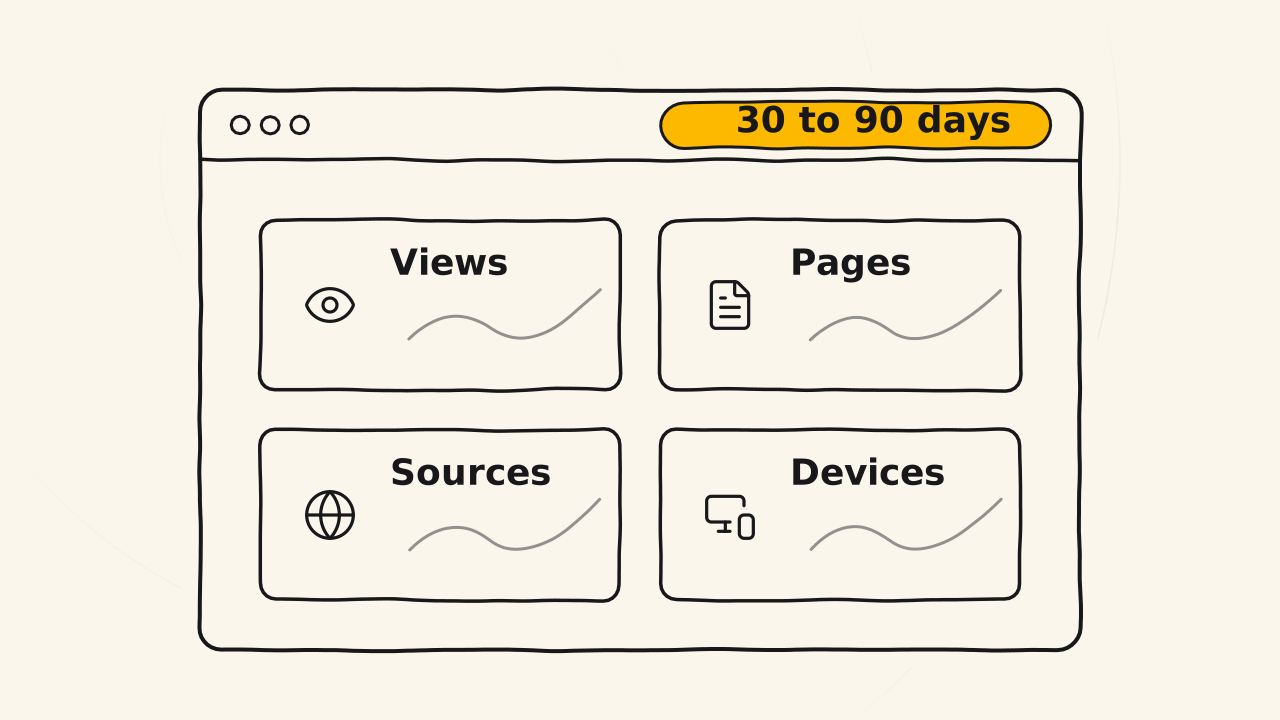
An Umami report keeps only the numbers that matter, laid out on one page:
- Visits and views. Divide views by visits and you know how many pages each person looks at on average.
- Most viewed pages, ranked from the top.
- Traffic sources: Google, AI tools like ChatGPT, social networks.
- Devices, browsers, operating systems and countries. When you know whether your audience uses computers or phones, and which country they are in, you can improve your content and choose better places to run ads.
Look at the data for 30, 60 or 90 days instead of 24 hours. The longer the period, the more accurate the numbers. If you want a teammate to see the report without logging in, turn on the share link for the website in Umami. Events is an advanced feature that you do not need when you start.