

With more than 10 million installs, Contact Form 7 is the most popular form plugin for WordPress. Themes you buy on marketplaces often install it for you.
Contact Form 7 is free and works by sending a notification email and not storing data. The plugin creates no table in the database, so it stays very light and stable over a long time. In return, it is not visual: you write the form with shortcodes, and a beginner may find that a little confusing at first.
What do you need to get ready?
- The Contact Form 7 plugin, installed on your WordPress website.
- SMTP for your website, so the notification email lands in your inbox and not in spam, for example Resend. If you have no SMTP, remember to check your spam folder.
- An inbox to answer your customers, like Gmail, Gsuite or Office365. You reply by answering the notification email.
How does Contact Form 7 handle a form submission?
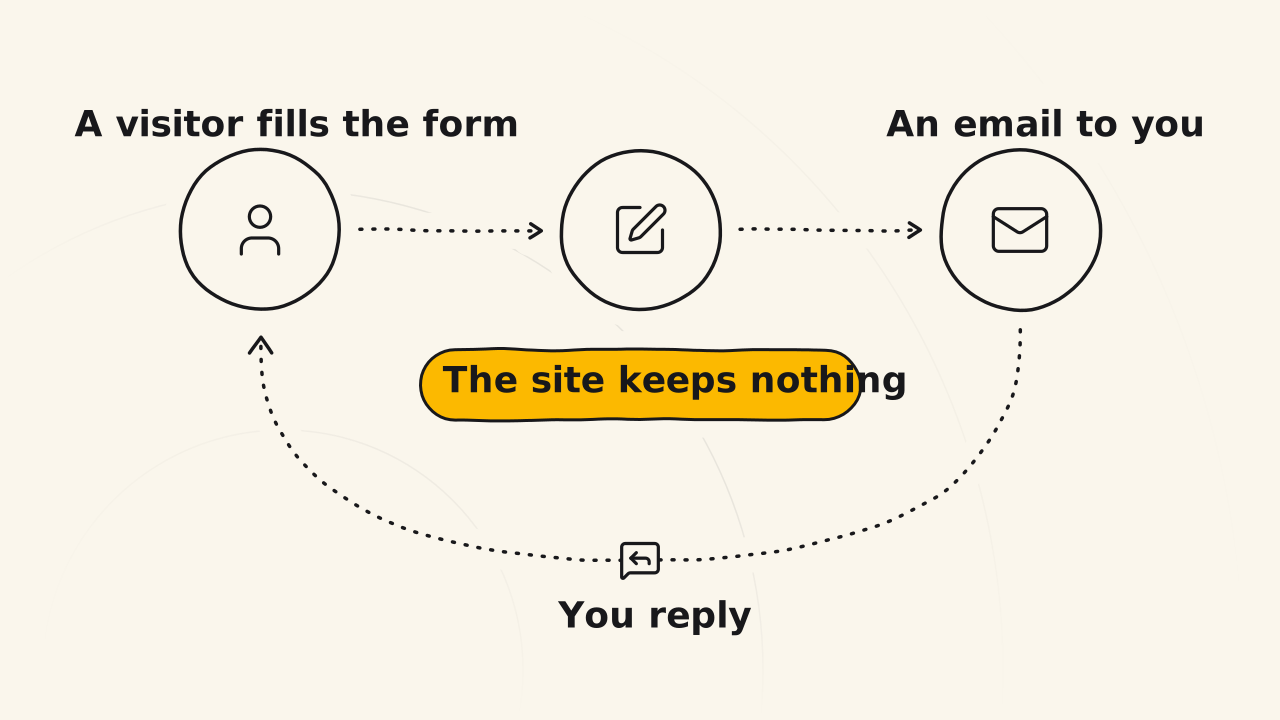
The process has only three steps. A customer fills in the form on your site. You get a notification email, sent to your inbox and not to the customer’s. You click Reply in your inbox, and your answer goes to the address the customer typed in the form.
Your site only creates and manages the form. The details a customer sends are not stored on the site, so the notification email is the only record of each submission.
Create a contact form with Contact Form 7
Create the form with shortcodes
Go to Contact Form 7, click to create a new form and name it, for example “Contact form 2”. Contact Form 7 always gives you this default
shortcodetemplate:<label> Your name [text* your-name autocomplete:name] </label> <label> Your email [email* your-email autocomplete:email] </label> <label> Subject: [text* your-subject] </label> <label> Your message (optional) [textarea your-message] </label> [submit "Send"]Cuong usually drops the labels to keep the form clean, and puts
placeholderhint text at the end of each field instead:[text* your-name autocomplete:name placeholder "Name"] [email* your-email autocomplete:email placeholder "Email"] [text* your-subject placeholder "Subject"] [textarea your-message placeholder "Message"] [submit "Send it"]Each field is a shortcode, opened and closed with square brackets:
text,email,textarea,submitare the field types.*means the field is required.your-name,your-email,your-subjectare the field names. You use them again in the notification email in step 2, also as shortcodes.placeholder "Name",placeholder "Email",placeholder "Subject"are the text that stands in for the field’s label.
Set up the notification email
The notification email is how you get the form’s content, because the plugin stores nothing on your site. Open the form’s email settings tab. The recipient box holds the admin email from Settings > General by default. If you do not use that email, type the email where you want to receive messages. The email subject:
[_site_title] "[your-subject]"The email body. Each field name in square brackets is replaced with what the customer typed:
From: [your-name] [your-email]
Subject: [your-subject]

Message body:
[your-message]

--
This is a notice that a contact form was submitted on your website ([_site_title] [_site_url]).
Keep the notification email this simple, because it only gives you the news.
Add the form to your contact page
Create a contact page, then add the form in one of 2 ways:
- Block: if you use the WordPress Block Editor, pick the Contact Form 7 block and choose the form you created.
- Shortcode: if you use a page builder like Elementor or similar, paste the form’s shortcode, which you get on the form list page. It looks like this:
[contact-form-7 id="e6050c6" title="Contact form 2"]Publish the page and open it: the form shows with the fields you set up.
How does the Contact Form 7 form look on your theme?
Contact Form 7 adds no styling code to your site. That is a weakness and also a strength: the form is light, but whether it looks good depends on your theme.
If your theme comes with built-in form styling, like Blocksy, you need to change nothing. Add the form and it looks good right away. Cuong recommends standard themes like that.
The default WordPress themes, like Twenty Twenty-Five, strip almost all of the form styling, so the form looks very plain. You need one more step: add a style for the form in an HTML block or in the head tag:
<style>
/* Form Container */
.wpcf7 {
    text-align: left;
    font-size: 17px;
}

/* Input Fields */
.wpcf7-text,
.wpcf7-textarea {
    width: 100%;
    padding-left: 10px;
    border: 1px solid #e4e4e4;
    border-radius: 4px;
    color: #777;
    font-size: 17px;
}

.wpcf7-text {
    height: 50px;
}

/* Input Wrapper */
.wpcf7-form-control-wrap {
    display: block;
    padding-top: 10px;
}

/* Focus States */
.wpcf7-text:focus,
.wpcf7-textarea:focus {
    border-color: #8f8f8f;
    outline: none;
}

/* Submit Button */
.wpcf7-submit {
    width: 100%;
    padding: 20px;
    font-size: 15px;
    font-weight: bold;
    color: #fff;
    background-color: #1d2731;
    border: 1px solid #fff;
    border-radius: 4px;
    cursor: pointer;
}

/* Response Messages */
.wpcf7-response-output {
    margin-bottom: 30px;
}
</style>