

Resend is a trusted SMTP email service, like Amazon SES, Mailgun, Sendgrid or Brevo, and Gumroad chose it for its own platform.
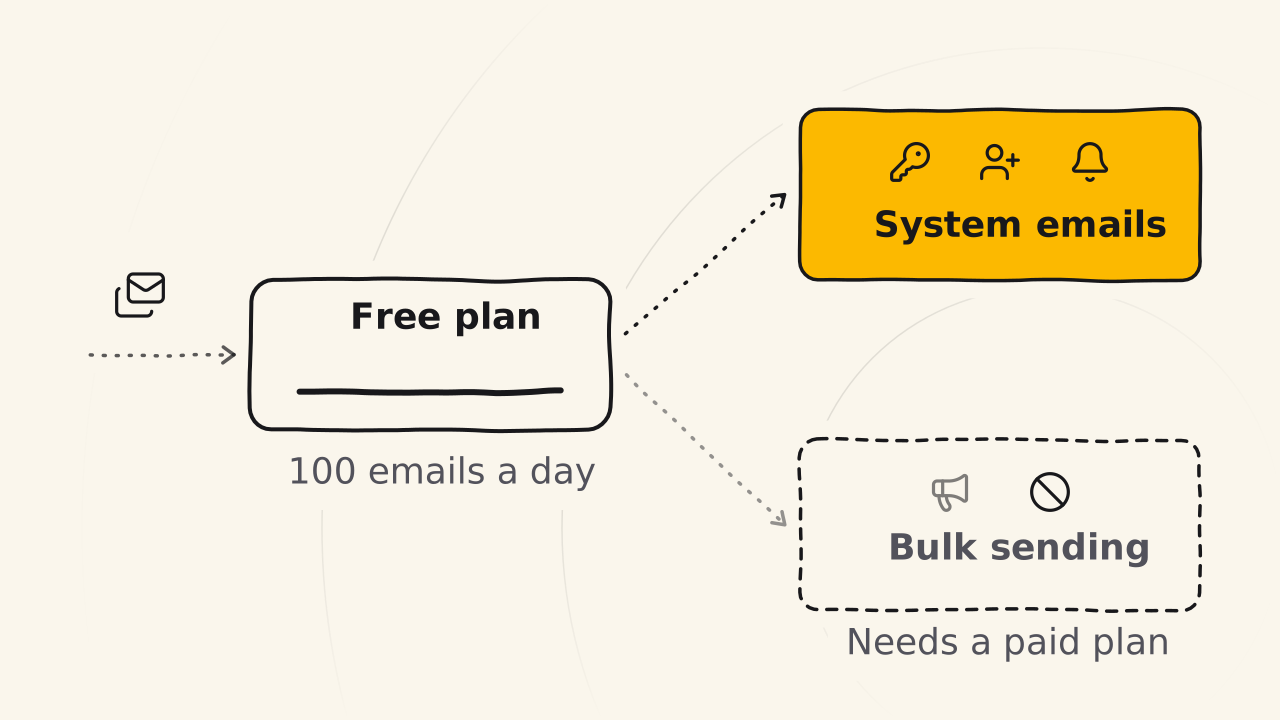
Resend suits a new site that needs to send system emails: password resets, new user emails and the other notification emails from WordPress. For a normal site that is not an online store, the free plan is more than enough. An online store or a site that sends bulk marketing email needs a paid plan.
What do you need to get ready?
- An email to sign up for Resend. Resend does not ask for a Visa credit card and does not verify accounts strictly.
- Access to edit your domain’s DNS, because Resend only sends email after your domain is verified. If your domain is on Cloudflare, Resend adds the records for you.
- A WordPress website where you can install plugins, so you can install FluentSMTP. The Resend SMTP details also work for a site that is not WordPress.
- About 5 minutes. Resend does not make you leave the sandbox, so a new account works right away.
Set up Resend SMTP for your WordPress website
Create a Resend account
The account gives you the SMTP details your website uses to log in to Resend’s email server.
Sign up for a new Resend account on the free plan with your email, using a password of at least 12 characters. Resend sends you a verification email. Click the link in it, then confirm once more on the screen that opens.
You land in the Resend dashboard.
Verify your domain
Before you can send email, Resend needs to know the domain is yours. Type your domain into the add domain section of Resend.
- Domain on Cloudflare: click the button to connect Cloudflare, then Authorize. Resend creates the DNS records for you, and you just wait.
- Domain at another provider: choose the manual option. Copy each record Resend gives you (MX and TXT) into the DNS page of your domain provider, with the exact name and value, then click finish.
The status shows Pending for a while, then changes to verified. From here you can send email from any address on that domain, like admin or support, because the whole domain is verified.
Connect Resend to WordPress with FluentSMTP
Go to Setting > SMTP to see the connection details:
Host
 - smtp.resend.com
Port
 - 465
User
 - resend
Password
 - YOUR API KEY
Port 465 works with SSL and port 587 works with TLS. The API key is your SMTP password. Create a new API key, name it after your website, choose Full access, then copy it.
Install and activate the free plugin FluentSMTP. Go to Settings > Add new connection > OtherSMTP, fill in the details above with your API key and save. The sender field is optional.
How do you know Resend SMTP works?
Before you finish, send a test email in FluentSMTP. Type in your personal email, turn off HTML email and click send. If the email reaches your inbox, your website sent it through Resend.
If you do not get the email, check the domain status in Resend again. If the domain still shows Pending, wait a little longer, or check each DNS record you copied.
How many emails can the Resend free plan send?
| Limit | Free plan |
|---|---|
| Emails per month | 3,000 |
| Emails per day | 100 |
| Domains | 3 |
100 emails per day is enough for the system emails of a normal site. Do not use the free plan for an online store or for email marketing, because the free plan is not meant for bulk sending. When you need more, move to a paid plan, which starts at $20 per month for 50,000 emails. These numbers come from Resend’s pricing page on October 26, 2026.