

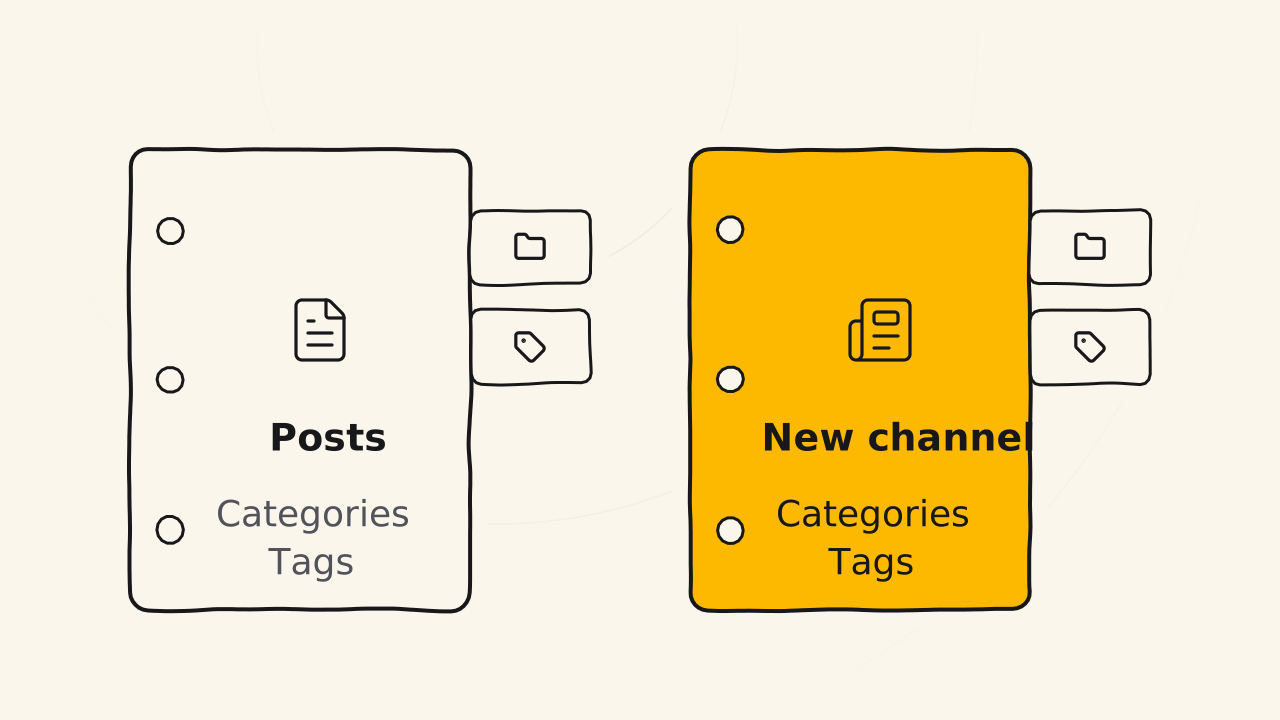
A content channel is its own type of post on your WordPress site, next to the default posts.
The default WordPress posts are for ordinary articles. Keeping different content channels apart from them makes your site easier to manage, easier to design and easier to rank. It also works with popup plugins, which can set more exact display conditions. Cuong usually keeps at least 2 content channels, to manage posts better.
What do you need to get ready?
- The plugin Secure Custom Fields, 100% free. Download and install it right on your WordPress website. SCF is like ACF Pro but free, and WordPress builds it. If you already know ACF, you can use ACF too.
- The name of your new channel, in plural and singular, to show in the admin menu. For example “News” for both.
- A choice about taxonomies: does the new channel share Categories and Tags with the default WordPress posts, or does it have its own?
Create a content channel with Secure Custom Fields
Create a new post type
The post type is your new channel. After you activate SCF, go to SCF > Post Types > Add New and fill in:
- Plural label and Singular label, shown in the admin menu.
- Post type key, written without accents. Think of it as the id or slug of the post type.
- Taxonomies. Add Categories, Tags or any label you name yourself. If you pick the existing Categories and Tags, the channel shares its taxonomies with the posts.
In the advanced settings, you decide whether it has an archive page (a page that lists all the posts). Usually you should turn it on, so you can change the layout in the theme’s Customizer (if it supports that). Here you also pick the icon and the position of the post type in the admin menu. Position 4 puts the channel right under Posts.
Save, and your site has a new content channel.
Create categories for the channel (optional)
You only need this step when the channel has its own taxonomies, separate from the Categories of the posts. Skip it for a simple content channel.
Go to SCF > Taxonomies > Add New. Name the Category anything you like, for example “News categories”, then in the post types field, add the post type you just created in step 1. Turn on Hierarchical, because categories have parents and children.
Create tags for the channel (optional)
Tags add a small topic to each post in the channel, with no parents or children. Repeat step 2 for Tags, for example “News tags”, but do not turn on Hierarchical.
The categories and tags you create here only live inside the new channel, and they are completely separate from the categories and tags of the default posts.
What will you see when the channel is done?
The admin menu has a new channel with the plural name you chose, in the position and with the icon you picked. If you did steps 2 and 3 too, the channel has its own Categories and Tags. That is a content channel with professional taxonomies for your WordPress website.
Create a few draft posts in the channel, then open the archive page. The archive page has a URL based on the post type key, so it is easy to remember. Keep that default URL. If you move to another platform or make changes later, a changed URL hurts your SEO.
How do you design your own content channel?
Once the channel is apart from the posts, you design it on its own. Go to the theme’s Customizer. Each post type has its own archive page, so you can change the layout. For example, the News page can show 4 columns while the Posts page keeps the old layout. On the home page, you pin the posts of each channel in different areas, which makes everything much easier to manage.